You launched Fortnite, and instead of the game you got a Launch Failed window, the text Fortnite is currently unavailable. Please try again later, and the code LS-0016. There is a Dismiss button, and it just loops back. Let’s break down what this is and how to fix it in a few minutes, without a 100 GB reinstall.
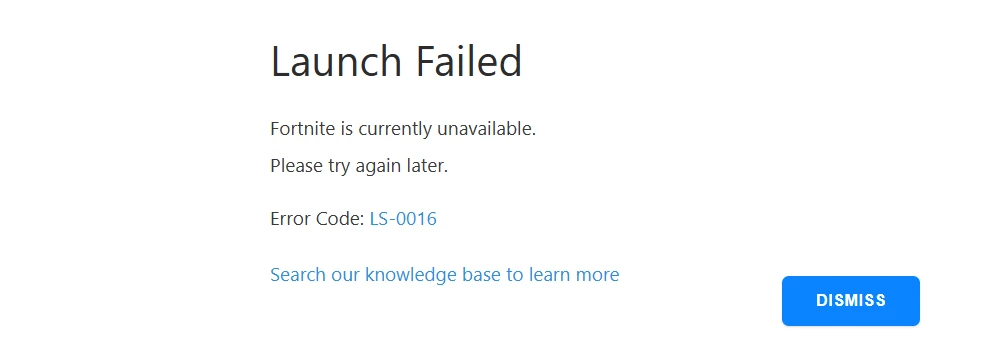
This is what the LS-0016 error looks like. If you see the same window, this article is for you.
In short: what LS-0016 is
LS stands for Launch Service, the launch component inside the Epic Games Launcher. The code LS-0016 means the launcher could not start the game for some reason and showed a placeholder about it being unavailable.
The main trap here is in the error text itself. The words currently unavailable hint at Epic’s servers, and half the guides online just tell you to wait. In practice, for most players the cause is local, on their own PC, and waiting is pointless. So the order is this: first rule out your own side in two minutes, and only if nothing helps do you look at the server status.
Why LS-0016 appears: the real causes
Most often LS-0016 shows up right after a Fortnite update or after an update got interrupted. Here is what is really behind the error, in order of how common it is.
| Cause | Where | What happened |
|---|---|---|
| An interrupted update left broken service files | Local | The disk holds a mix of the old and new version plus orphaned manifests. The launcher does not know what to start |
| No write permissions on the game folder | Local | Windows replies access denied. Ties in with the IS-EO-Tsk-Lock error |
| Stale launcher cache (webcache) | Local | The launcher holds old data about the version and cannot reconcile it with the game |
| Antivirus or VPN cutting off access | Software/network | Controlled folder access or a VPN interferes with the launch and the verification |
| Scheduled maintenance or a season change | Epic servers | A rare case. Then the error hits everyone at once, and all you can do is wait |
Important: if the error appeared right after a Fortnite patch, it is almost certainly the first or second row of the table, not the servers. An interrupted update is the most common culprit behind LS-0016.
Step 1. Close Epic completely and restart it
It sounds obvious, but this is what fixes LS-0016 most often: the launcher may have hung in the background in a broken state, and just closing the window is not enough, the processes keep running.
- In the system tray (the icons by the clock in the bottom right) right-click the Epic icon and choose Exit.
- Open Task Manager (Ctrl + Shift + Esc) and end the EpicGamesLauncher and EpicWebHelper processes if they are still running.
- Open Epic again and click Resume or Launch on Fortnite.
If the update did not finish downloading, the launcher will offer to finish it after the restart. Let it complete and try again.
Step 2. Verify the game files (the main method)
If the restart did not help, we move on to the most reliable method. Verifying the files compares what is on the disk with what should be there, and re-downloads or repairs everything the interrupted update damaged. This is what fixes most LS-0016 cases.
- Open your Library in the Epic Games Launcher.
- Click the three dots next to Fortnite, then Manage.
- Click Verify and wait for it to finish. This can take a while, it is checking every file.
- After the verification, click Launch.
Tip: before verifying, make sure you have at least 15-20 GB of free disk space. If there is no room, the launcher has nowhere to download the missing files, and the verification will fail.
Step 3. Clear the launcher cache (webcache)
The launcher keeps a temporary cache, and sometimes it goes stale: the launcher remembers an old version of the game and cannot reconcile it with what is already installed. Clearing the cache is safe, your progress and games are not lost.
- Close Epic completely (as in step 1, including the processes in Task Manager).
- Press Win + R, paste the path and press Enter:
%localappdata%\EpicGamesLauncher\Saved- Delete the webcache folder (and, if present, webcache_4147 or one with a different number at the end).
- Start Epic again, it will recreate the cache on its own. Click Launch.
Step 4. Grant permissions to the Fortnite folder
This step closes the cause that ties LS-0016 to the IS-EO-Tsk-Lock error: Epic cannot write a service file into the game folder because Windows replies access denied. Running as administrator only fixes this some of the time, granting permissions to the folder once is more reliable.
First find out where the game is installed: in Epic that is Library, the three dots on Fortnite, Manage. The path is usually something like:
C:\Program Files\Epic Games\FortniteWith the mouse:
- Right-click the Fortnite folder, then Properties.
- The Security tab, the Edit button.
- Select the Users group. If it is not there: Add, type Users, OK.
- Tick Full control, then Apply and OK. When it asks about nested files, agree and wait.
With a single command (faster). Run Command Prompt as administrator (Start, type cmd, right-click, Run as administrator) and paste this, adjusting the path if the game is on a different drive:
icacls "C:\Program Files\Epic Games\Fortnite" /grant *S-1-5-32-545:(OI)(CI)F /T /CWait for the Successfully processed message. The code *S-1-5-32-545 is the Users group by its system identifier, so it works on any Windows language.
Step 5. Antivirus, VPN and network
If you have made it this far, check that nothing outside the game is getting in the way.
- Controlled folder access in Windows Defender sometimes blocks Epic from writing to the game folder. Turn it off temporarily or add the Epic folder to the exclusions.
- Third-party antivirus add the whole Epic Games folder to the exclusions.
- VPN or proxy turn it off for the launch, they break the launcher’s connection to the verification servers.
- DNS in your network adapter settings, set it manually, for example Google
8.8.8.8and8.8.4.4, or Cloudflare1.1.1.1and1.0.0.1, instead of automatic. This sometimes helps when your provider’s DNS hands back broken addresses for Epic’s servers. - Free space make sure the system drive has some room to spare. A drive packed to the limit breaks both updates and the launch.
Step 6. When it really is Epic’s servers
A rare but real case: maintenance is underway or a season is changing. The signs of a genuine server problem:
- The error did not appear after your update, it came out of nowhere, and Fortnite launched fine before.
- The same LS-0016 is hitting your friends and showing up in discussions right now.
- The Epic status page (status.epicgames.com) shows an incident or scheduled work.
If all three points describe you, all you can do is wait: once the server is back up, the client will catch up on its own. Nothing you do on the PC will speed it up.
If nothing helped
Went through every step and LS-0016 is still there? Do not wear yourself out, hand it over to us.
We will help with your error
We will walk you through your LS-0016 right in the chat on the site, help you fix the launch and, if you want, remotely tune your PC for maximum FPS. We will take a free look at what is going on.
Error gone, but Fortnite is lagging?
LS-0016 is about launching, not about performance. But if the game starts after the fix and then drops FPS, freezes mid-match or takes half a minute to load, that is a different story, and it is solved by tuning the PC.
That is exactly what we do: we remotely squeeze the maximum number of frames out of your hardware without buying anything new. What is included:
- Fortnite optimization for FPS: game settings, drivers and the system tuned for a stable frame rate.
- The Classic 11, CustomX and GamePro packages: a clean Windows install, BIOS tuning, CPU, GPU and memory overclocking.
- If you are not sure what is dropping, send us the component load from your overlay in the chat on the site, and we will point out the bottleneck for free.
Launch first, frames second. The first part is sorted, we will help with the second.
Want us to do it for you?
We optimize your PC remotely. Result in 1-2 hours, stable and tested.